chaoticum:

I believe in free education, one that’s available to everyone; no matter their race, gender, age, wealth, etc… This masterpost was created for every knowledge hungry individual out there. I hope it will serve you well. Enjoy!

FREE ONLINE COURSES (here are listed websites that provide huge variety of courses)

IDEAS, INSPIRATION & NEWS (websites which deliver educational content meant to entertain you and stimulate your brain)

DIY & HOW-TO’S (Don’t know how to do that? Want to learn how to do it yourself? Here are some great websites.)

FREE TEXTBOOKS & E-BOOKS

SCIENTIFIC ARTICLES & JOURNALS

LEARN:

1. LANGUAGES

2. COMPUTER SCIENCE & PROGRAMMING

3. YOGA & MEDITATION

4. PHOTOGRAPHY & FILMMAKING

5. DRAWING & PAINTING

6. INSTRUMENTS & MUSIC THEORY

7. OTHER UNCATEGORIZED SKILLS

Please feel free to add more learning focused websites. 

*There are a lot more learning websites out there, but I picked the ones that are, as far as I’m aware, completely free and in my opinion the best/ most useful.

justice4mikebrown:

OurStates.org provides you with the tools you need to help influence which bills become laws in your state

You can use the interactive map to click on your state and review a list of bills and check their legislative status. They also have 6 steps for helping you influence your state legislator.

5calls.org is another site (with scripts) to help you contact your state legislator so you can make your voice heard.

intellectus:

While language learning apps and websites such as are plentiful online, places to practice are less easy to find! Here’s a few you can try out, none of which are limited to just one or two languages:

Chat

HelloTalk (iOS/Android): an app with 100+ languages that lets you chat with native speakers of your target language from around the world with voice + text. It’s the one most geared towards just conversation!

WeSpeke (iOS/Android): an app and website with probably the largest variety of languages at 130, with text, audio, and video chat.

Conversation Exchange: this one’s a little different, as it not only allows you to get a pen pal and has text, video, and voice, but it also lets you meet up with native speakers in your area to practice!

Speaky (iOS/Android): a web and mobile app which is pretty much social media for language learners! It has 110+ languages and you can make video/audio calls and message from your browser.

HiNative (iOS/Android): not exactly for chatting with people, but instead you can ask native speakers about their culture/language in your target language!

Read

Duolingo Immersion: lets you translate articles from your target language into your native language, or vice versa.

Readlang: read articles, books, and other texts online, with vocab support, and it will create vocab lists and flashcards based on the words you needed help with.

All You Can Read: a selection of magazines and news websites from 200 countries, offered in a wide variety of languages.

Worldpress: a directory of worldwide newspapers and magazines, sorted by country, region, and also political affiliation.

Listen

Live-Radio: a collection of thousands of worldwide radio stations in a multitude of languages.

Every Tongue: 7,000+ recordings of all different languages, readily available online.

Omniglot: a massive listing of online radio stations in languages from A-Z!

Global Recordings Network: search by language or country to listen to any of a wide variety of online recordings.

studyingbrains:

A Harm Reduction Guide to Safer Drug Use

drugsand.me is an educational website that teaches about the existing harm reduction methods for drug users. We do not promote drug use, but we do encourage you to be safe if you are thinking of taking any kind of drug. This website was inspired by the thousands of deaths that occur in the UK due to the lack of correct drug education.

An example of the site’s interactive feature, allowing users to investigate the risks when mixing different drugs:

image

All the information on the site is sourced from peer-reviewed academic publications, the advice they offer – on cocaine, MDMA, alcohol, cannabis, and now ketamine and LSD – is certainly a cut above the anecdotal information you may receive from peers. 

Have a look around: Drugsand.me 


Studyingbrains Instagram || Studyingbrains Twitter 

emmastudies:

Microsoft OneNote tutorial for study, class and lecture by emmastudies

Hello! I have had numerous people message me about how I structure my notes for OneNote so I thought I would put together a tutorial! Above is a small run down of the program and my little two cents on each feature. But now I’m going to go into a little more detail to help anyone who is looking for somewhere to type their notes. Through I’ll suggest my ideas on how to use OneNote for different reasons including study notes, class notes and lecture/tutorial notes.

Set up and use:

  1. Start by downloading OneNote from the App Store or from their website if you’re using a PC. It is free!!! I would definitely recommend downloading the mobile or tablet app as well.
  2. Sign in with an Outlook account and begin making your notebooks. For high school I would suggest a new notebook for each class. For university, I had one notebook for the entire semester. As I go into my second semester I’ll make a new one, and so one. For study notes, it is up to you. You could either make one notebook for all your study notes and use sections to divide per subject or make a new notebook for each subject again. Or simply and a new section in the existing notebook. Notebooks are linked to OneDrive meaning you can close the notebook and reopen it at any time. They’re automatically saved too, so you can edit on your phone and when you use your computer it is updated!
  3. Start creating sections. These act as dividers so depending how you have structured your notebook, make them for either each topic of your subject (high school) or each of your classes/subjects (university). For my high school class/study notes I made a new section for each new topic and for university I have one per subject. As you can see in the photoset; my notebook was legal studies (subject) and each section was for a topic (crime, human rights, family, consumers, assessments and homework).
  4. Create your pages for each time you have class. Add the title of what you’re doing and start typing your notes. For my lectures I usually just name them “lecture 1”, “lecture 2” because I’m lazy, however for study notes I would use each subheading of the topic in the syllabus. If you’re wanting to understand my headings and subheadings completely I suggest checking out the legal studies syllabus that I created the above notes too (you can see it here on page 26).
  5. Time for decoration and colour coding. Usually as I’m typing I bold or underline and colour code but you can always go back and do it as a revision method. This also gives you a chance to add any extra information you find! You can see an explanation of my colour code in the final image of the photoset. I found colour coding and formatting super helpful when I was studying for my HSC final exams!
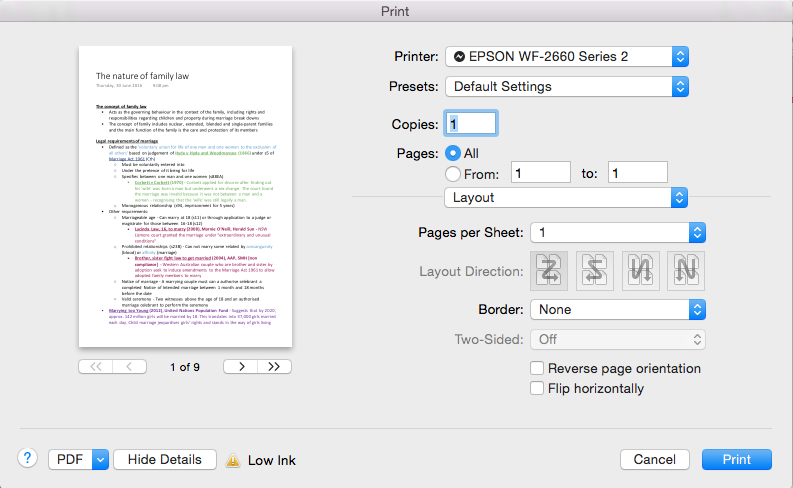
  6. Printing time! When I had finished my study notes (or class notes) I would print them so I had a physical copy to highlight and annotate. Here is where it gets a little fiddly. To print on one A4 size piece of paper without cutting off half your text, you need to shrink the size of the text box. This is what you might see – with half the text cut off. I would say reduce it to about half the original size – you can usually see on print preview how close it is to the edge. After you have made the textbox thinner, it should look like this. Another tip is printing using one sheet for two or more pages. This helps to reduce the amount of paper you’re using. On the print settings look for “pages per sheet” and change it to the number of pages you want (obviously the more pages, the smaller the font). It should look something like this (I’m not 100% sure if every computer or printer has this option, but for reference I use an Epson printer).

That is pretty much it for how I use OneNote for my all my different types of notes! It is very simple once you’ve organised everything! I would 100% recommend this program. We were advised to use it in year 9 when we received laptops from the government and I’ve not stopped using it. I hope this tutorial was helpful. If there is anything I’ve missed out, drop me an ask. Thank you for reading! x